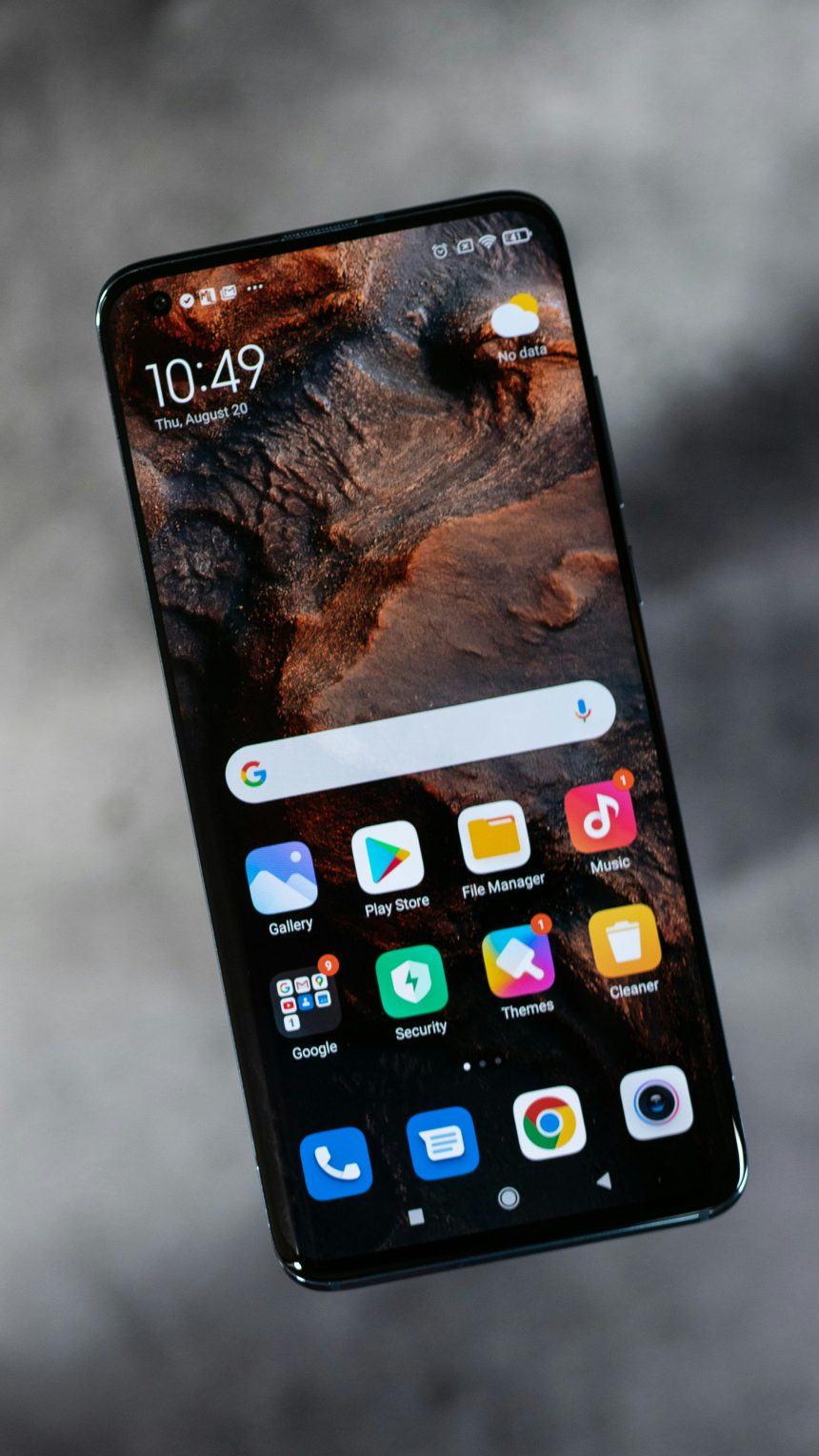
Xiaomi’s Redmi Note 10 Pro, the Android phone, is known for its stunning display, powerful performance, and customizable user interface. While many users enjoy personalizing their devices with custom themes and wallpapers, there may come a time when you want to revert to the default theme for a fresh start or troubleshooting purposes. In this comprehensive guide, we’ll walk you through the steps to restore the default theme on your Xiaomi Redmi Note 10 Pro, ensuring a seamless and hassle-free experience.
Understanding Themes on Xiaomi Redmi Note 10 Pro
Before we delve into the process of restoring the default theme, it’s essential to understand how themes work on the Xiaomi Redmi Note 10 Pro. The device comes pre-loaded with a selection of default themes, each offering a unique design, layout, and color scheme. Additionally, users can download and install custom themes from the Mi Themes Store to personalize their devices further. However, if you’ve customized your device with a custom theme and want to return to the default theme, follow the steps below.
Step-by-Step Guide to Restoring Default Theme
Step 1: Access Theme Settings
Begin by unlocking your Xiaomi Redmi Note 10 Pro and navigating to the home screen. From the home screen, swipe down from the top of the display to access the notification panel. Next, tap on the “Settings” icon (gear-shaped) to open the device settings menu.
Step 2: Navigate to Theme Settings
In the settings menu, scroll down and locate the “Themes” option. Tap on “Themes” to access the theme settings, where you can manage and customize your device’s theme settings, including wallpapers, ringtones, and fonts.
Step 3: Select Default Theme
Within the theme settings menu, you’ll see a list of available themes, including both default themes and any custom themes you’ve installed. Look for the default theme option, which is usually labeled as “Default” or “System Default.” Tap on the default theme to select it as the active theme for your device.
Step 4: Apply Default Theme
Once you’ve selected the default theme, you’ll be prompted to apply the changes. Confirm your selection by tapping on the “Apply” or “Set as Default” button, depending on the wording used in your device’s interface. Your Xiaomi Redmi Note 10 Pro will then apply the default theme, reverting to the original design and appearance.
Additional Tips:
– Clear Theme Cache: If you’re experiencing issues with the default theme after restoring it, consider clearing the theme cache to resolve any potential conflicts or errors. To do this, navigate to Settings > Apps > Manage apps > Themes > Clear cache.
– Reboot Your Device: After restoring the default theme, consider rebooting your Xiaomi Redmi Note 10 Pro to ensure that the changes take effect smoothly. Simply press and hold the power button, then select “Restart” from the on-screen options.
Benefits of Restoring Default Theme
1. Simplicity: The default theme offers a clean and simple design that may appeal to users looking for a minimalist aesthetic or prefer the familiar layout of the device.
2. Performance: Restoring the default theme can help improve device performance by reducing the load on system resources, especially if you’ve been using resource-intensive custom themes.
3. Troubleshooting: If you’ve encountered issues or errors with custom themes, reverting to the default theme can help troubleshoot and diagnose the problem more effectively.
4. Consistency: Using the default theme ensures a consistent user experience across Xiaomi Redmi Note 10 Pro devices, making it easier to navigate and use the device intuitively.
In conclusion, restoring the default theme on your Xiaomi Redmi Note 10 Pro is a straightforward process. The good thing is that it can be completed in a few simple steps so you’ll be able to have the default theme in just a few moments. Whether you’re looking to refresh your device’s appearance, troubleshoot issues with custom themes, or simply prefer the simplicity of the default design, following the steps outlined in this guide will help you revert to the original theme with ease. By understanding how themes work on your device and utilizing the built-in settings menu, you can customize your Xiaomi Redmi Note 10 Pro to suit your preferences and enjoy a seamless user experience.